How to find saved passwords on any device


If you’ve forgotten a login, you may still be able to find the password saved to your device or browser. Saved passwords are stored in different locations depending on your device, browser, and sync settings.
This guide explains where stored passwords might be located on most major devices and browsers, plus shares troubleshooting tips if you come across any access issues.
How to find saved passwords on iPhone and iPad
Saved website and app passwords on iPhone and iPad are stored as encrypted keychain items. The keychain is the operating system’s secure credential database, designed to protect sensitive data such as login details, Wi-Fi passwords, authentication tokens, and cryptographic keys.
You can access your saved passwords in three places: The Passwords app on newer versions, in Settings on earlier versions of iOS and iPadOS, and through AutoFill when signing in to an app or website.
Using the Passwords app
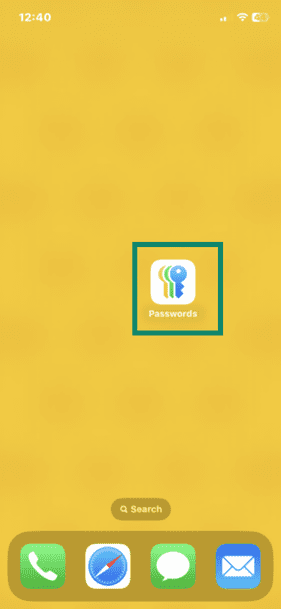
In iOS 18 or later, the Passwords app is the main place where saved passwords are stored and managed on iPhones and iPads. To find a saved password:
- Find and open the Passwords app. Enter your passcode or use Face ID or Touch ID when prompted.
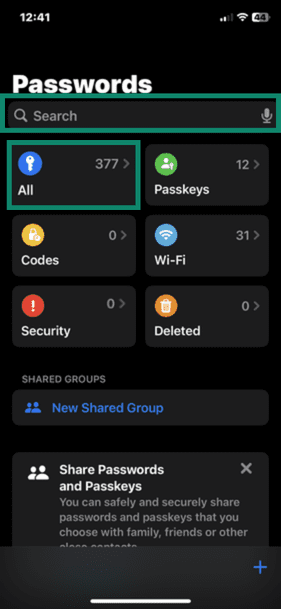
- Browse through your saved passwords in the All tab or use the search bar at the top to find a specific one.
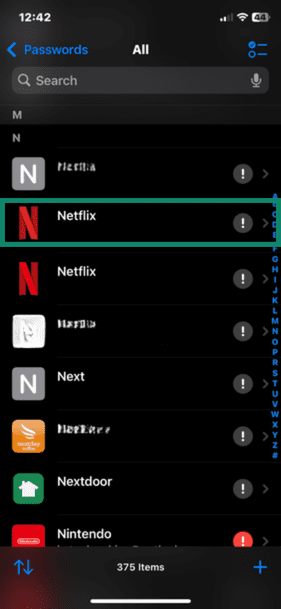
- Tap the entry to open it.
- Here, you’ll find the username, password, website, and potentially other details. Tap the Password field to reveal it.
Using Settings
If you’re using an older version of iOS, specifically iOS 17 or earlier, you’ll find all of your passwords within the Settings app.
- Open Settings and select Passwords.
- Confirm it's you with Face ID, Touch ID, or your passcode when asked.
- Select the website or app you need to view the password or passkey for.
Accessing saved passwords inside apps
When you're logging into an app like Netflix, Safari, or any other app that supports AutoFill, a built-in feature that stores your login details and enters them automatically, you can quickly access your saved passwords without leaving the app.
We’ll use Netflix for the following guide, but the steps are similar for all apps that support the feature:
- Open the app and navigate to the sign-in screen.
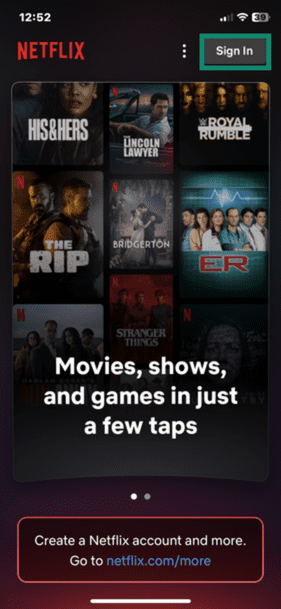
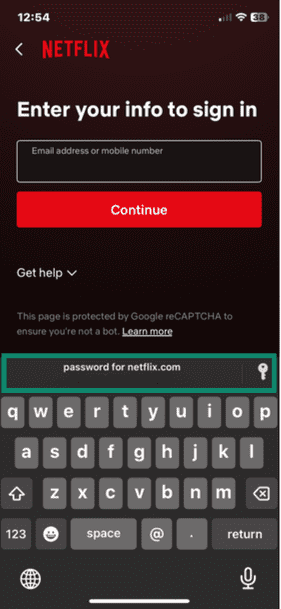
- Tap the username, email, or phone number field, then choose your saved account from the banner above the keyboard to fill in your details automatically. In this case, tap the Email address or mobile number field, then tap password for netflix.com above the keyboard.
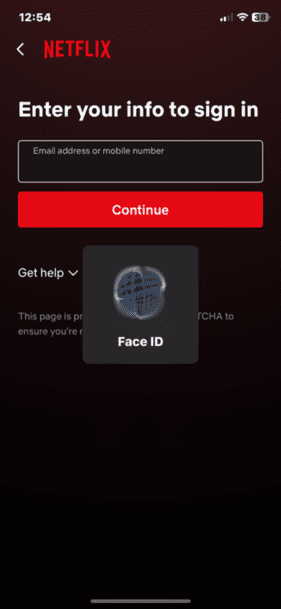
- Authenticate using Face ID, Touch ID, or your passcode.
Note: If you don't see the right account, tap the key icon on the right side of the suggestion banner. It’ll take you to your saved passwords, where you can find the correct one.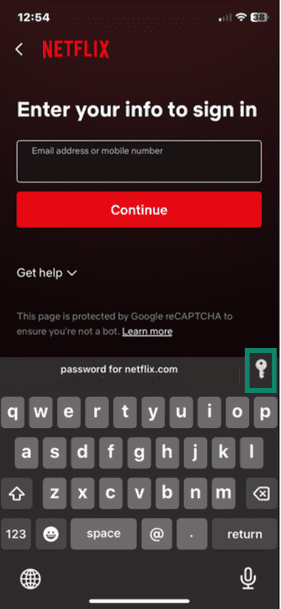
Troubleshooting password access issues on iOS
If you’re having trouble viewing saved passwords, the issue is typically related to authentication (Face ID, Touch ID, or your passcode) or device settings.
If you forgot your device passcode
If you’ve forgotten your passcode, you’ll need to reset your device. This removes the passcode and lets you set up the device again.
- Turn off your iPhone or iPad.
- Connect your device to a computer and put it into recovery mode.
- On Mac, open Finder, select your iPhone in the sidebar under Locations, click Trust [your device] if necessary, and select Restore.
Note: Steps may differ depending on the version of iOS and your device.
After resetting, you can sign in with your Apple ID to restore your data from an available iCloud backup. If you had iCloud Keychain enabled, your passwords will sync back after signing in.
If Face ID or Touch ID isn’t working
If biometric authentication isn’t recognizing you, select Use Passcode when prompted and enter your device passcode instead.
Other quick fixes to try:
- Clean the sensor: Wipe your fingerprint sensor or Face ID camera with a clean, dry cloth.
- Restart your device: A simple restart often resolves temporary biometric authentication issues.
- Re-register your fingerprint or face: Go to Settings > Face ID & Passcode (or Touch ID & Passcode) and set up your biometrics again.
If passwords aren’t syncing with iCloud
When passwords appear on one Apple device but not another, iCloud password syncing may be switched off. To check and enable iCloud Keychain:
- Open Settings and tap your name at the top.
- Tap iCloud > Passwords and Keychain.
- Make sure Sync this iPhone (or Sync this iPad) is turned on.
- If it was off, toggle it on and wait a few minutes for syncing to complete.
How to find saved passwords on a Mac
macOS stores saved passwords in the Keychain, an encrypted system database built into the operating system. The default keychain used for login credentials is called the login keychain, and you can find it in the Keychain Access app. macOS Sequoia and later also have the same user-friendly Passwords app as on iOS, where you can also find and manage saved credentials
Using the Passwords app
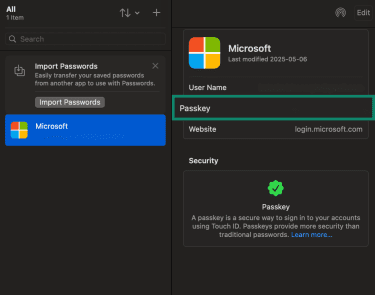
On recent versions of macOS, Apple stores saved websites and app logins in the built-in Passwords app, which provides the quickest way to view and manage passwords you’ve saved in Safari or through iCloud Keychain.
Here’s how to access it:
- Open Finder and select Applications.
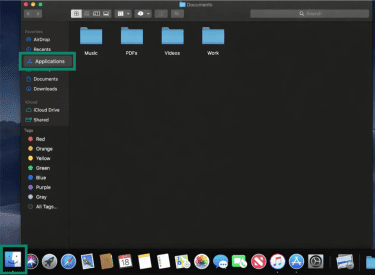
- Find the Passwords app and tap to open it.
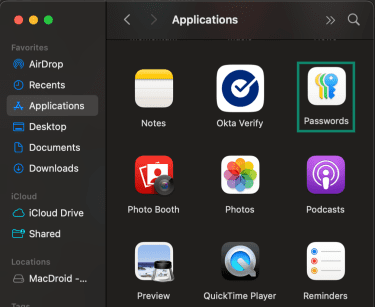
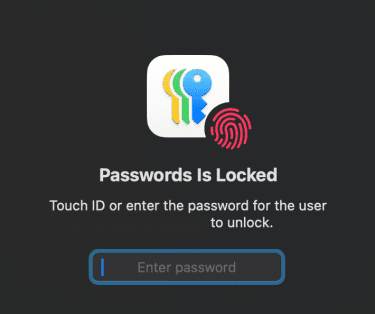
- Authenticate using Touch ID, your Mac login password, or your Apple Watch if enabled.
- In the sidebar, make sure All is selected so you can view every saved login.
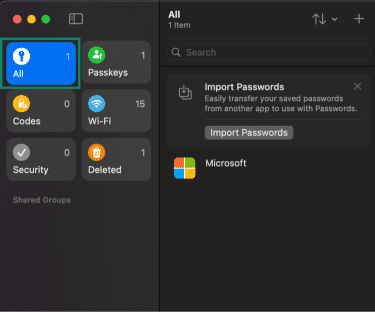
- Use the search bar to type the name of the website or app and click the account to open its details. By default, password details are hidden, so you need to click the Password or Passkey field to reveal them.
Using Keychain Access
For a more detailed look at saved credentials, Keychain Access lets you manage passwords, certificates, Wi-Fi credentials, and other secure items stored on your Mac.
To find a saved password using Keychain Access:
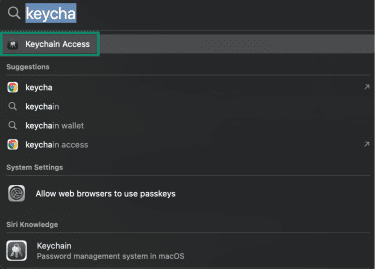
- Open Keychain Access by searching for it in Spotlight (Command + Space).
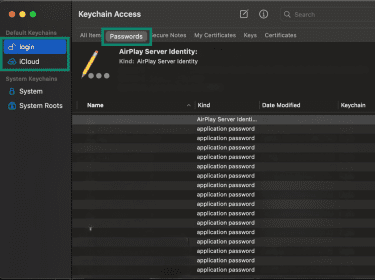
- In the sidebar, select either login (for locally stored credentials) or iCloud (for passwords synced across Apple devices), then choose Passwords from the category list.
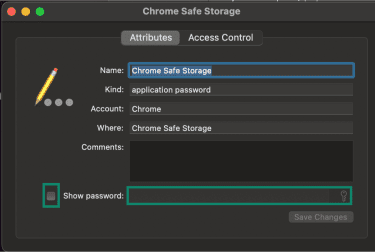
- Locate the website, app, or network you’re looking for, double-click the item to open it, and select Show password. You’ll be prompted to enter your Mac login password or approve on your Apple Watch to access the details. Once you do, the password will appear in the empty field.
Troubleshooting on macOS
If you can’t access saved passwords on your Mac, the issue usually falls into one of three categories: keychain authentication, Touch ID/login problems, or iCloud sync.
If you can’t unlock the keychain
If you're unable to unlock your keychain in Keychain Access, it's usually because the keychain password doesn't match your current Mac login password.
To fix keychain unlock issues:
- Open Keychain Access.
- From the menu bar, select Keychain Access > Settings (or Preferences, depending on the version of macOS).
- Click Reset Default Keychains.
- Enter your current Mac login password when prompted.
- This will create a new keychain and may require you to re-enter some passwords.
If you've recently changed your Mac password, your keychain password may still be set to your old password. Updating it to match your current login password should resolve the issue. To do that:
- Open Keychain Access.
- Right-click on login in the left sidebar under Keychains.
- Select Change Password for Keychain "login."
- Enter your old keychain password, then your current Mac login password twice.
- Click OK to update the keychain password.
If Touch ID or your login password isn’t working
If Touch ID fails, you can still unlock passwords using your login password. If your login password is rejected, try the following:
- Ensure you’re entering the correct password for the current macOS user account.
- Confirm you’re signed in to the correct user profile.
- If you recently changed your password, restart your Mac and try again.
If Touch ID continues to fail, check its settings:
- Open System Settings.
- Go to Touch ID & Password.
- Ensure Touch ID is enabled for unlocking apps, and confirm your fingerprint is still registered.
If passwords aren’t syncing across devices
If passwords appear on one Apple device but not another, iCloud password syncing may be disabled. To check and enable iCloud Keychain:
- Open System Settings (or System Preferences on older macOS versions).
- Click your Apple ID at the top (or Apple ID in the sidebar).
- Click iCloud in the sidebar.
- Scroll down and make sure the Passwords and Keychain option is turned on.
If it was off, enable it and wait a few minutes for syncing to complete.
You can also check that you’re signed in with the same Apple ID on all devices and confirm that your Mac is connected to the internet for real-time syncing. If passwords still don’t sync, you can try signing out of iCloud and signing back in.
How to find saved passwords on Android devices
Android devices save passwords using a password manager connected to your account. Most devices use Google Password Manager, which stores and syncs credentials with your Google account. Some Samsung phones also support Samsung Pass, which ties saved passwords to your Samsung account.
Note: These instructions may vary depending on your device type and Chrome or Android version.
Using Google Password Manager
If you’re using a Google account to save passwords, here’s how to find them using Google Password Manager:
- Open Chrome and tap the three-dot menu in the top-right corner.
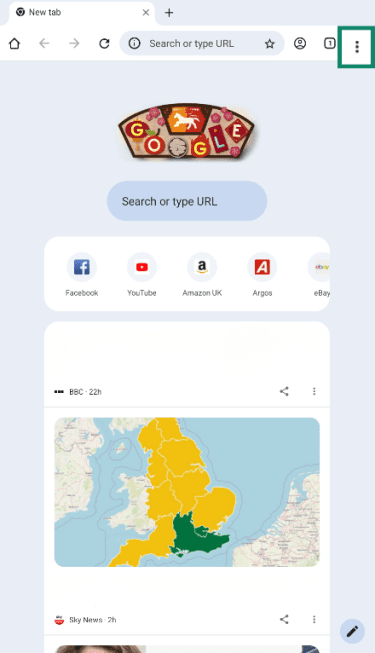
- Tap Settings, and select Google Password Manager.
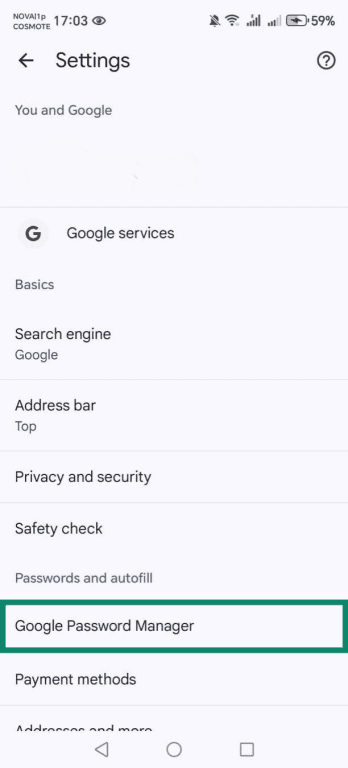
Note: If you can’t find Google Password Manager in the browser settings, visit passwords.google.com directly.
- Browse the list or use the search bar to find the account.
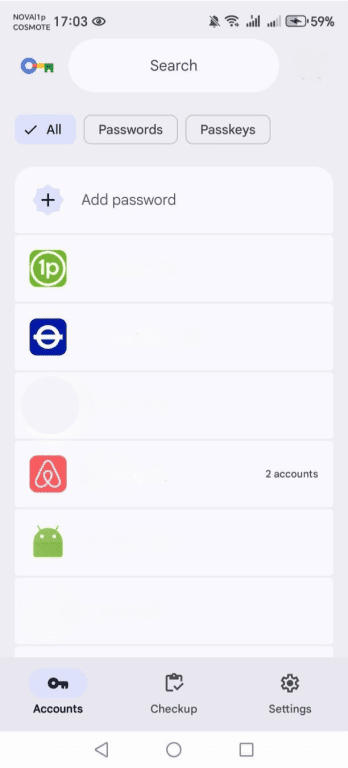
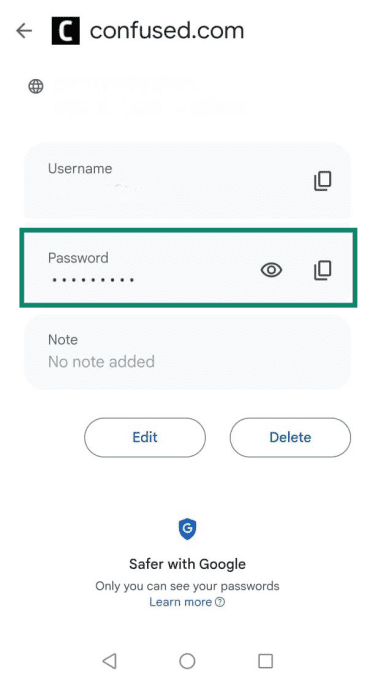
- Tap the entry, then tap the eye icon and authenticate with a PIN or biometrics to reveal the password.
Viewing saved passwords on Samsung devices
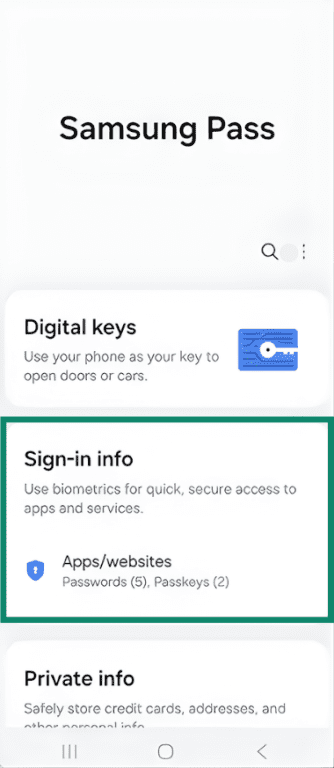
On Samsung Galaxy devices, you can view saved passwords in Samsung Pass following these steps:
- Open the Samsung Pass app and authenticate using your fingerprint, face recognition, or your device PIN. Tap Sign-in info and select the login you want to view.
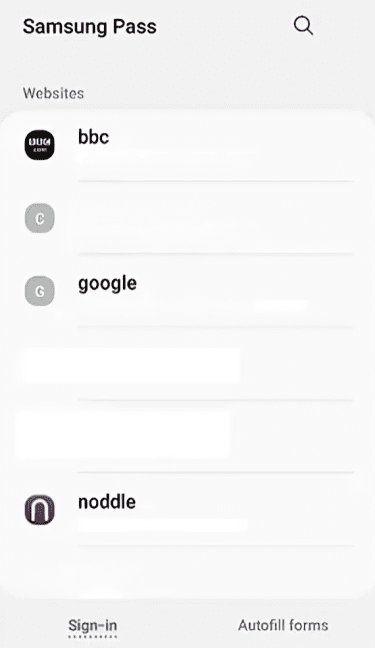
- Choose your login information from the list and gain access to email addresses, usernames, and passwords.
Troubleshooting on Android
If your saved passwords aren’t showing up, the problem is usually one of three things: you’re signed into the wrong Google account, sync is disabled, or a different Autofill service is active.
Check that you’re signed into the correct Google account
Passwords saved to Google Password Manager are tied to a specific Google account.
- Open Chrome and tap your profile picture.
- Confirm you’re signed into the account where your passwords were saved.
- If not, switch accounts and check again.
Make sure password sync is enabled
If sync is turned off, passwords saved on other devices won’t appear.
- Open Chrome, tap your profile picture, and select Sync.
- Confirm that the Passwords (or Passwords and passkeys) option is enabled.
- If sync is off, turn it on and allow a few minutes for passwords to update.
Depending on your Android version, you may also be able to check under:
Settings > Accounts > [Your Google Account] > Account sync > Passwords.
Check your Autofill service
If passwords aren’t appearing in apps, your phone may be using a different Autofill provider.
- Open Settings.
- Go to Passwords and accounts or Security & privacy.
- Tap Autofill service.
- Confirm that Google (or your intended password manager) is selected.
If Samsung Pass or another manager is active, your passwords may be stored there instead.
If you can’t access your Google account
If you’re locked out of your Google account, you won’t be able to access passwords saved to it until you recover the account.
To begin recovery:
- Go to Account recovery.
- Enter your email address.
- Follow the verification steps.
Once access is restored, you can view your saved passwords in Google Password Manager.
How to find saved passwords on Windows
Windows stores certain saved credentials in Credential Manager, a built-in tool for managing authentication data. This includes network credentials, Windows app logins, and some web credentials saved by Microsoft services.
Using Credential Manager
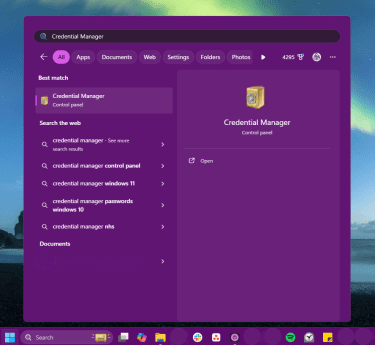
- To open Credential Manager, click the Start button, type "Credential Manager," and select the app from the results.
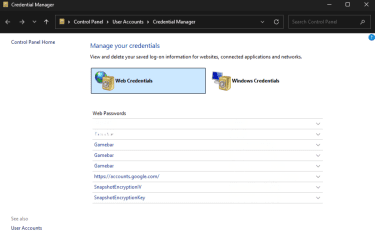
- Once opened, you’ll see two categories: Web Credentials and Windows Credentials. Saved website logins are found in Web Credentials.
Accessing web credentials
To view saved website credentials, click Web Credentials, locate the website you’re looking for, and click the entry to expand it. Select Show next to the password field and enter your Windows account password or authenticate with Windows Hello when prompted.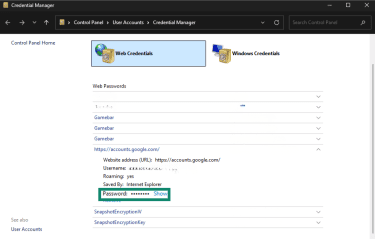
Viewing or editing saved credentials
From the expanded credential view, you can check login details and passwords or select Remove to delete the saved login. You cannot make edits to email addresses or passwords from here.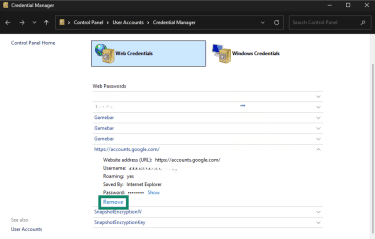
Keep in mind that changes made in Credential Manager may not automatically update passwords stored inside browsers like Chrome or Firefox. Those browsers manage their own saved credentials separately.
Troubleshooting password access issues on Windows
If saved passwords aren’t appearing or won’t reveal:
- Make sure you’re checking the correct location: Credential Manager only shows certain credentials. Most website passwords are stored in your browser.
- Check which account you’re signed into: If you use multiple Windows profiles, passwords may be saved under a different account.
- Restart your computer: If passwords won’t reveal when clicking Show and authentication repeatedly fails, a restart may fix the glitch.
How to find saved passwords in web browsers
Most modern browsers include a built-in password manager that stores login credentials when you choose to save them. These passwords may be stored locally in your browser profile and, if sync is enabled, tied to your online account (such as Google or Microsoft).
Google Chrome
Google Chrome stores saved passwords in Google Password Manager. You can access it directly from Chrome’s settings. To find saved passwords in Chrome:
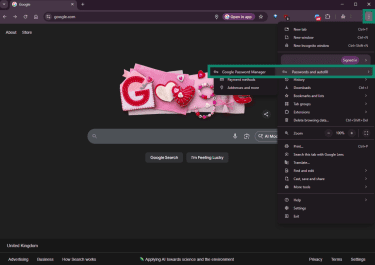
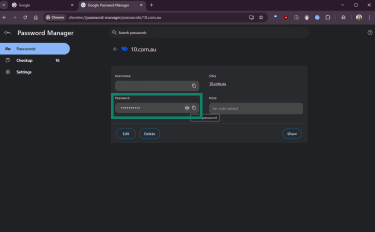
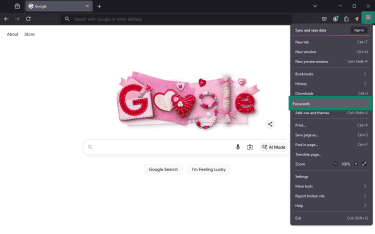
- Open Chrome, click the three-dot menu in the top-right corner, hover over or click Passwords and autofill, and select Google Password Manager.
- Once Google Password Manager opens in a new tab, browse the list or use the search bar to find a specific account. You’ll be prompted to authenticate with your device password or biometric verification.
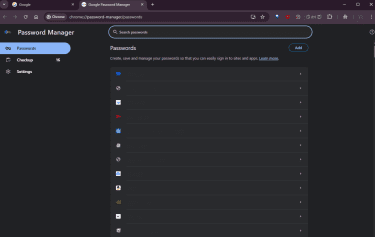
- Click the entry and click the eye icon to reveal the password.
Microsoft Edge
Microsoft Edge also stores passwords in a built-in password manager, which syncs with your Microsoft account if enabled. To find saved passwords in Microsoft Edge:
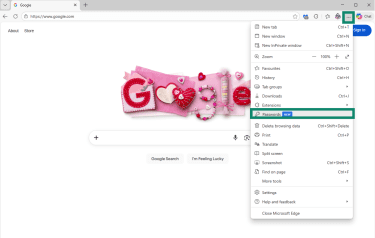
- Open Microsoft Edge, click the three-dot menu in the top-right corner, and select Passwords.
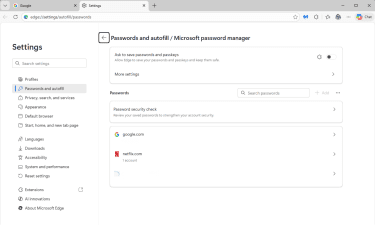
- Browse the list of passwords and login options and click to select your account. You’ll be prompted to authenticate with your biometric verification or device password.
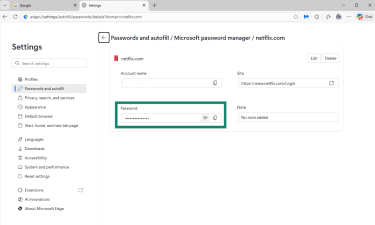
- View your account details and click the eye icon to reveal your password.
Mozilla Firefox
Mozilla Firefox works similarly to Chrome and Edge, with a built-in Passwords option for saving logins. To find saved passwords in Firefox:
- Open Firefox, click the three-line menu in the top-right corner, and select Passwords.
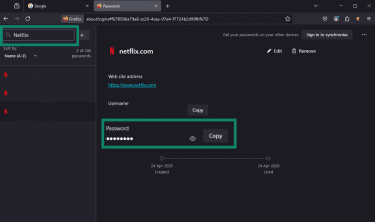
- Browse the list or use the search bar to find the account, click the login entry, and click the eye icon to reveal the password. You may be prompted to enter your device password or use biometric verification.
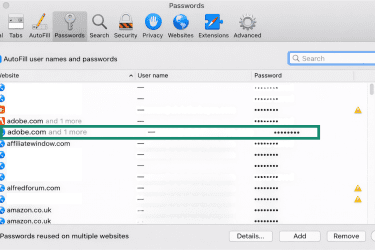
Safari
You can find passwords saved directly via Safari in a couple of steps:
- Open Safari, click the Safari tab in the top-left corner, and select Preferences (or Settings on newer versions).
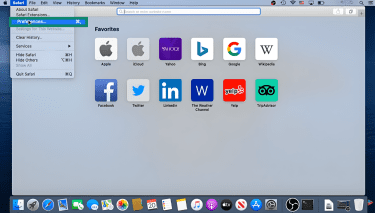
- In the Preferences view, click the Passwords option. You’ll be prompted to enter your user password. If you’re using macOS Sequoia or later, you may be prompted to open the Passwords app.
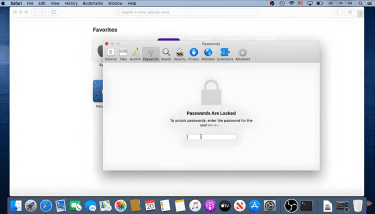
- Once verified, you’ll see a list of accounts and passwords. Click the account for the password you want to view, then click the password and authenticate.
When to use a third-party password manager
While your device's built-in password storage is convenient and secure for basic needs, a dedicated password manager offers additional features that can improve your online security. Consider using a dedicated password manager if you:
- Use multiple operating systems: If you switch between iPhone, Android, Windows, and Mac, a cross-platform password manager like ExpressKeys is more convenient.
- Share accounts with family or team members: Dedicated password managers offer secure password-sharing features, making it easy to share app logins, Wi-Fi passwords, or work credentials without sending them over text or email.
- Need advanced security features: Third-party managers often include password health reports, breach monitoring, secure file storage, and two-factor authentication (2FA) code generation in one place.
- Want more control over your data: Some password managers offer self-hosted options or let you choose where your encrypted data is stored, giving you more control than built-in solutions.
- Manage passwords for multiple accounts: If you juggle personal and work Google accounts or multiple Apple IDs, a dedicated manager can organize everything without the confusion of switching between accounts.
FAQ: Common questions about finding saved passwords
How do I locate passwords on my phone?
Where are passwords stored on a Google phone?
Can I retrieve deleted passwords?
Is it safe to save passwords in my browser?
How do I export passwords from different managers?
Take the first step to protect yourself online. Try ExpressVPN risk-free.
Get ExpressVPN









 Support Center
  Live Chat
  FAQ
FAQ