
How to turn off your ad blocker on any browser or device



Ad blockers are useful tools, but they can interfere with how websites load, and some sites won't let you access their content until you disable one. Whether you're running a browser extension, a built-in filter, or a third-party app, this guide explains how to turn off ad blocking on any major browser or device.
Why some websites ask you to disable your ad blocker
Many websites rely on advertising revenue to cover their operating costs. When an ad blocker prevents those ads from loading, the site may not receive revenue from your visit. Some publishers respond by detecting ad blockers and asking visitors to disable them before accessing content.
Ad blockers can also interfere with how websites measure their own performance. Analytics tools rely on scripts, tracking cookies, and server requests to collect visitor data, all of which ad blockers commonly block.
This may result in lower-than-actual page visit numbers, inaccurate traffic reports, and incomplete audience insights. For publishers who rely on that data to make decisions about content and advertising, this incentive is another reason to ask visitors to disable blocking.
When you might want to turn off your ad blocker
Most ad blockers work by matching page elements against filter lists based on a URL, behavior, or how the element is labeled in the page's code. For example, if an element's label contains words like "ads," "banner," or "sponsor," the blocker may flag it even if it has nothing to do with advertising.
In practice, this means login scripts, payment processors, embedded video players, and comment sections can all get blocked by accident. If a video won't play, a form won't submit, or a checkout keeps failing, disabling your blocker is a quick way to rule it out as the cause.
How to turn off your ad blocker on desktop browsers
The fastest method depends on how ad blocking is set up on your device. There are two common setups for desktop: a browser extension installed directly in the browser and a built-in browser setting. The sections below cover each scenario on different web browsers.
How to turn off your ad blocker on Chrome
Chrome has a limited built-in ad blocker. It removes ads on sites that have been flagged for violating the Better Ads Standards, a set of guidelines targeting the most disruptive ad formats, such as auto-playing video with sound, pop-ups, and large sticky ads. It doesn't block ads broadly across all sites.
Chrome also has a separate pop-up and redirect blocker. This doesn't block ads in the traditional sense, but some sites use pop-up windows or redirects to deliver content like login prompts, payment windows, or media players. If any of these aren't working, the pop-ups and redirects blocker may be the cause.
If you're seeing a request to turn off your ad blocker on a site, the cause is often a third-party extension. Here’s how to disable each one:
To disable a third-party ad blocker:
- Click the three-dot menu in the top-right corner, select Extensions, and then click Manage Extensions.
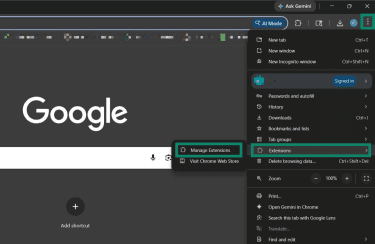
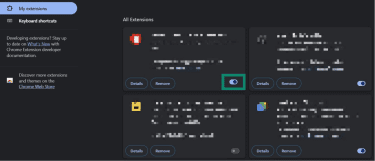
- Find the ad blocker extension and turn off the toggle next to it.
To turn off Chrome's built-in ad blocker:
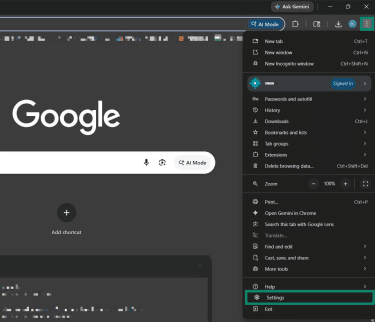
- Open Chrome and click the three-dot menu in the top-right corner, then select Settings.
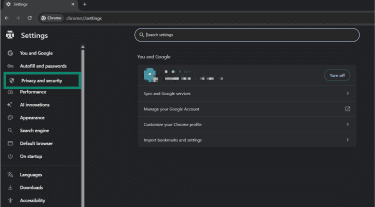
- Select Privacy and security from the left sidebar.
- Click Site settings.
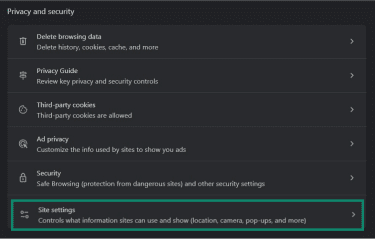
- Select Additional content settings.
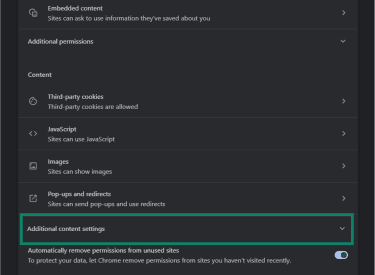
- Click Intrusive ads.
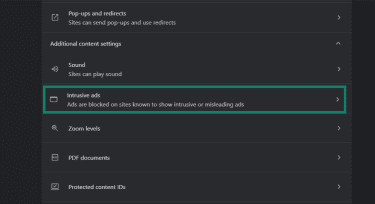
- Select Any site you visit can show any ad to you.
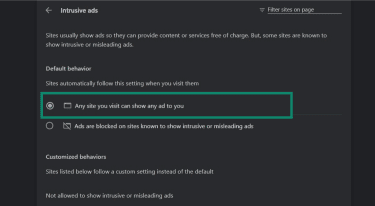
To allow pop-ups and redirects:
- Go back to Site settings and select Pop-ups and redirects.
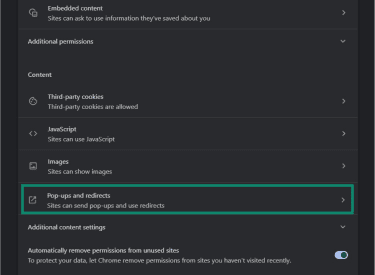
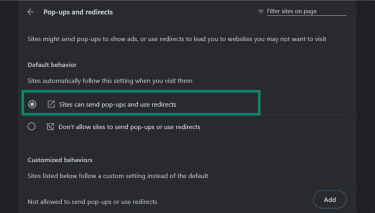
- Under Default behavior, select Sites can send pop-ups and use redirects.
How to turn off your ad blocker on Edge
Like Chrome, Edge has a limited built-in ad blocker that blocks ads on sites flagged for intrusive or misleading ad experiences and has a separate pop-ups and redirects blocker.
It also has a Tracking Prevention feature that, while not an ad blocker, blocks tracker scripts that many ad networks rely on to serve ads. When those scripts are blocked, sites may treat it as an ad blocker.
If you're seeing an ad blocker message on a site, the cause may be a third-party extension. If you don't have one installed, Tracking Prevention set to Strict is may be the cause. Edge's built-in ad blocker only affects a small number of sites flagged for particularly poor ad experiences and is rarely the reason for these prompts.
To disable a third-party ad blocker extension:
- Click the three-dot menu and select Extensions, then click Manage extensions.
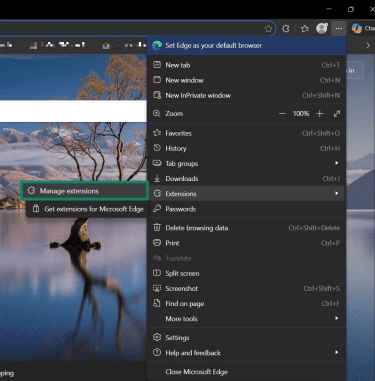
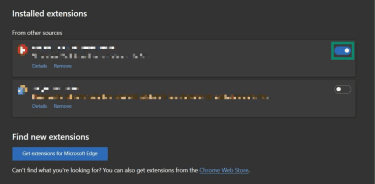
- Find the ad blocker extension and turn off the toggle next to it. You can also select Remove to uninstall it.
To adjust Tracking Prevention settings:
- Open Microsoft Edge and click the three-dot menu in the top-right corner. Select Settings.
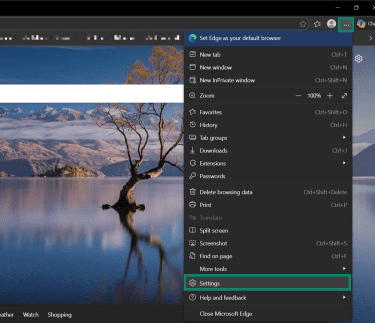
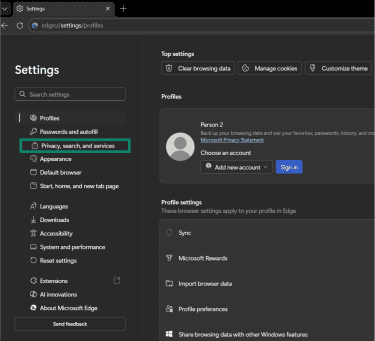
- Select Privacy, search, and services from the left sidebar.
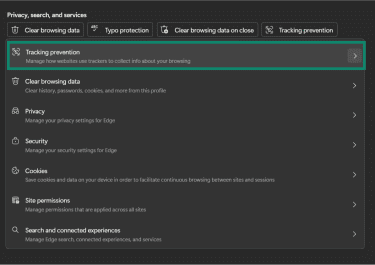
- Click Tracking prevention.
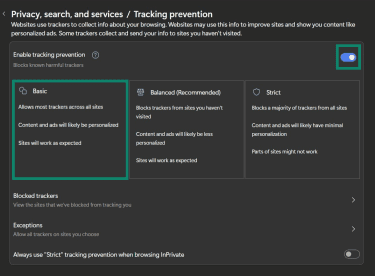
- Select Basic to reduce most ad blocking, or turn off the toggle next to Enable tracking prevention to disable it completely.
To turn off Edge's built-in ad blocker and pop-ups and redirects blocker:
- From the Privacy, search, and services tab, select Site permissions > All permissions.
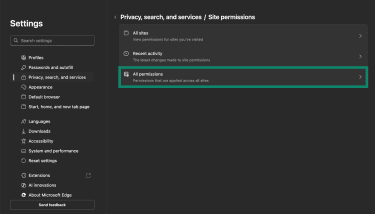
- Select Pop-ups and redirects and Intrusive ads and switch off the Blocked (recommended) toggle for each.

How to turn off your ad blocker on Firefox
Firefox has no built-in ad blocker. The only built-in feature relevant to ad blocking is Enhanced Tracking Protection (ETP), which blocks tracker scripts. Many ad networks rely on those same tracker scripts, so when ETP blocks them, the ad never loads, and sites may detect this as ad blocking.
Still, ad blocker prompts in Firefox are most commonly caused by a third-party extension. If you don't have one installed, ETP could be the reason.
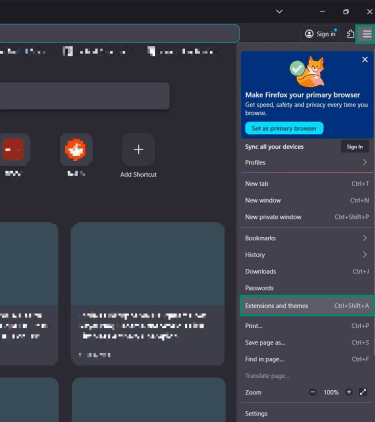
- Click the three-line menu in the top-right corner of Firefox and select Extensions and themes.
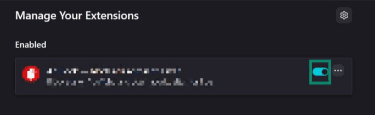
- Find the ad blocker extension and turn off the toggle next to it.
To manage ETP:
Go to Settings > Privacy and security and set Enhanced Tracking Protection to Standard.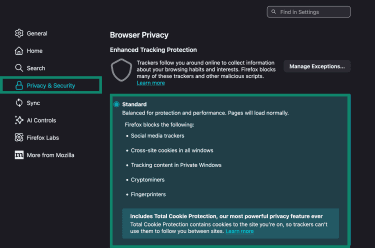
How to turn off your ad blocker on Safari
Safari doesn't have a built-in ad blocker. Ad blocking in Safari runs through Content Blockers, which are third-party apps installed from the App Store that work as Safari extensions. Ad-blocker messages in Safari are usually caused by an installed Content Blocker.
Note: Safari does have a built-in privacy feature called Intelligent Tracking Prevention (ITP), but it works differently from the tracking protection found in Chrome, Edge, and Firefox. ITP limits cross-site tracking cookies rather than blocking ad scripts, so it doesn't stop ads from loading and is unlikely to trigger ad blocker messages on sites.
To disable Content Blockers in Safari:
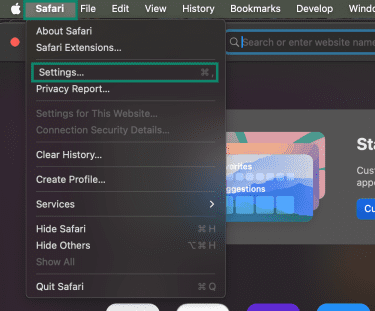
- Open Safari and click Safari in the top-left menu, then select Settings.
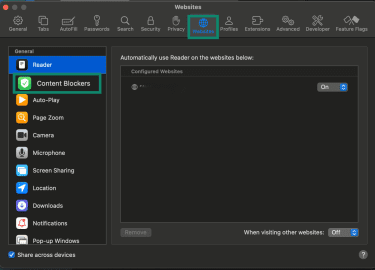
- Go to Websites, then select Content Blockers.
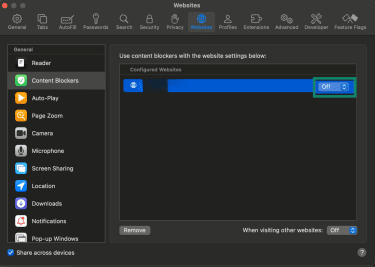
- Select the website and turn the toggle Off.
How to turn off your ad blocker on mobile devices
Ad blocking on mobile works differently from desktop. Most notably, extensions are not supported on Chrome for Android or on any browser for iPhone. This means if ads are being blocked broadly across all sites on mobile, the cause is more likely a system-level app or Domain Name System (DNS) setting than a browser extension.
How to turn off your ad blocker on Android
On Android, ad blocking can run at three different levels: through your browser's built-in settings, through a dedicated app, or through a Private DNS setting. Each works independently, so you may need to check more than one.
In browser settings
Firefox is the primary Android browser that supports extensions. If you have a third-party ad blocker installed in Firefox, disabling it works the same way as on desktop.
For all other browsers, extensions aren’t supported on Android. The ad-blocking feature in Chrome works the same way as its desktop version. Go to the three-dot menu > Settings > Site settings to find the Intrusive ads and Pop-ups and redirects settings.
If you’re using Samsung Internet, ad blocking runs through third-party apps installed via the browser. To disable one, tap the three horizontal lines > Ad blockers, then toggle off the switch next to the installed ad blocker.
System-level apps
Dedicated ad-blocking apps filter traffic before it reaches any browser, typically by setting up a local virtual private network (VPN) on your device. This means they block ads across all browsers and apps, not just one.
For disabling, most dedicated ad-blocking apps include a simple on/off toggle on the main screen, and some have an allowlist so you can disable ad-blocking per site.
Private DNS
Private DNS is a built-in Android feature that lets you route your internet traffic through a custom DNS server. Some users configure it to use an ad-filtering DNS, which blocks ads across all browsers and apps at the network level without installing any app. Because Private DNS blocks requests to ad servers before they reach your browser, sites can detect this as ad blocking and display a prompt to turn it off.
To check if it's active, go to Settings > Network & internet > Private DNS. On Samsung devices, go to Connections > More connection settings > Private DNS. If you can't find it, search for "Private DNS" in your Settings search bar. If the field shows a custom hostname rather than Automatic or Off, a filtering DNS is active.
To disable it:
- Open Settings and tap Network & internet > Private DNS.
- Select Off or Automatic and tap Save.
How to turn off your ad blocker on an iPhone
On iPhone, Apple restricts all browsers to the same underlying engine, which means no browser other than Safari supports Content Blockers or extensions. Chrome, Firefox, Edge, and other browsers on iOS can’t run ad-blocking extensions, so they are less likely to be the source of ad blocking.
Turn off Safari's pop-up blocker
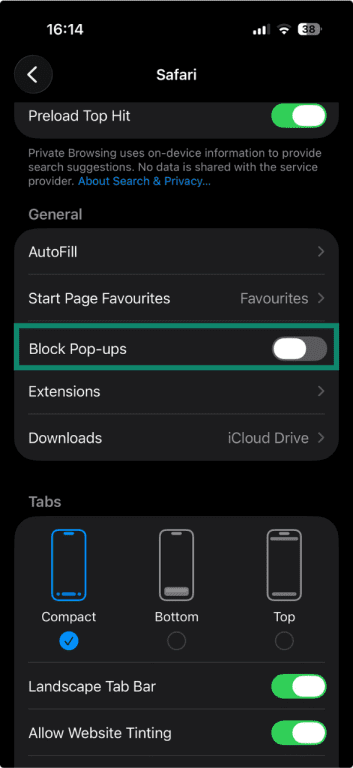
Safari has a native pop-up blocker that is on by default. It prevents new windows from opening, which can block some ad-related pop-ups and occasionally interfere with site functionality like login prompts or payment windows.
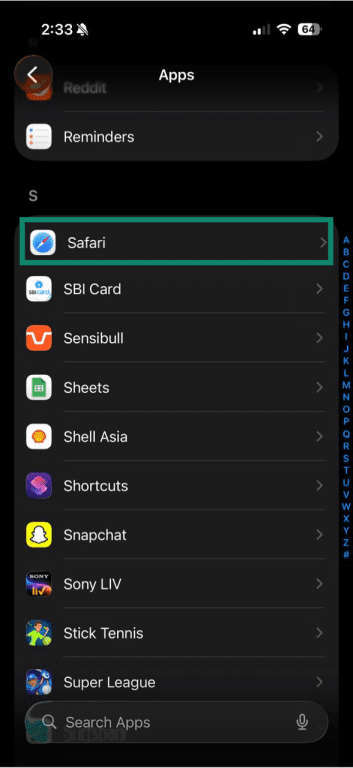
- Open Settings and scroll down to Apps.
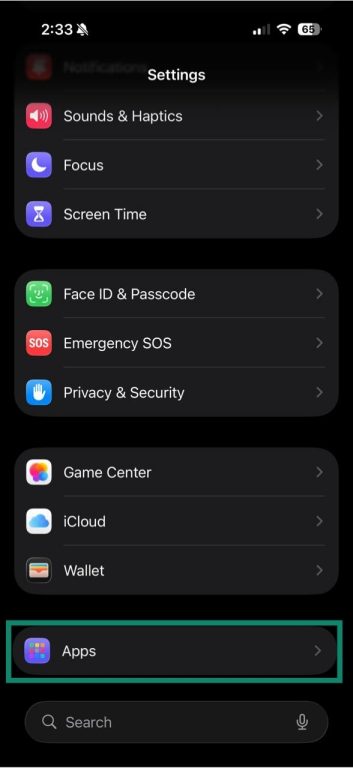
- Select Safari.
- Turn off the toggle next to Block Pop-ups.
Turn off third-party ad-blocking apps
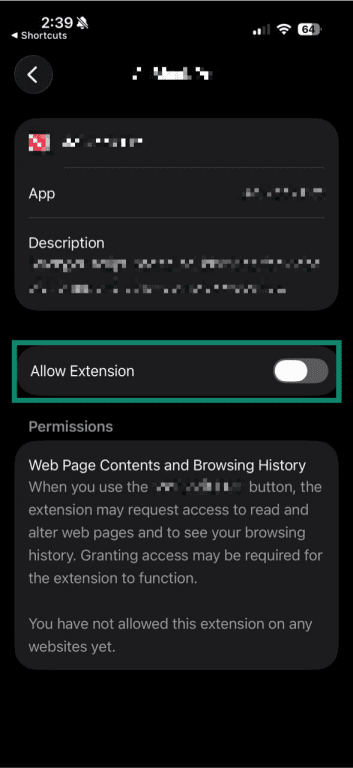
On iOS, third-party ad blockers work as Safari extensions, meaning they are controlled directly within Safari settings rather than through a separate app interface like on Android.
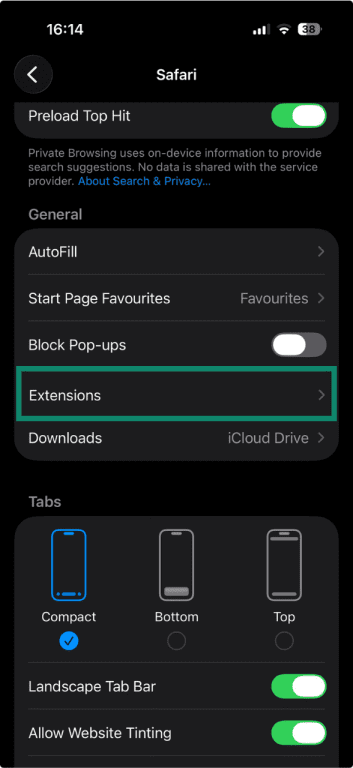
- Open Settings, scroll down to Apps, and select Safari. Tap Extensions.
- Select the ad blocker extension you want to disable.
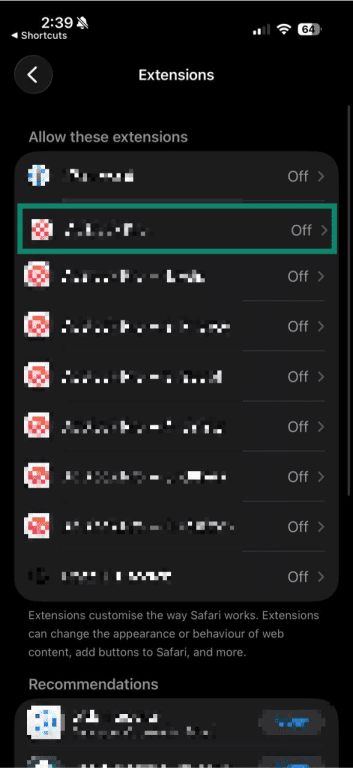
- Turn off the toggle next to Allow Extension.
Remove a DNS configuration profile
Some users set up DNS-level ad blocking by installing a configuration profile on their iPhone. This routes all DNS traffic through a filtering server and blocks ads across all browsers and apps, and can trigger ad blocker messages even with no extension active.
To check if one is installed, go to Settings > General > VPN, DNS & Device Management > DNS. If you see a custom DNS entry, a filtering DNS is active. Tap the profile and select Remove to delete it.
How to turn off your ad blocker for one website
Disabling your ad blocker entirely means ads and related content can load across every site you visit. Most ad blockers and some built-in browser features let you make an exception for a specific site instead, keeping everything else blocked. This is usually enough to satisfy a site's ad blocker detection and is typically the better option over disabling protection globally.
Third-party extensions
The steps vary slightly by tool, but the principle is the same: visit the site, open your ad blocker's settings, and look for an option to pause or disable it for that site only.
Note that whitelisting a site typically allows both ads and trackers to load. Some third-party ad blockers offer more granular controls that let you allow ads on a site while still blocking third-party trackers, which built-in browser features don't support.
Built-in browser features
Where available, here's how to disable built-in browser ad blocking for a specific site only:
- Chrome: Visit the site, click the lock or info icon in the address bar, select Site settings, and under Intrusive ads, select Allow.
- Edge (desktop only): Go to Settings > Privacy, search, and services > Site permissions > All permissions > Intrusive ads. Under Customized behaviors, click Add site next to Allowed to show any ads.
- Firefox: Click the shield icon in the address bar and toggle off Enhanced Tracking Protection for that site only. Protection stays on for all other sites.
- Safari (Mac): Right-click the address bar, select Settings for this website, and uncheck Enable Content Blockers.
Troubleshooting ad-blocker problems
Even after disabling your ad blocker, some sites may still flag it, content may fail to load, or certain features may stop working. The steps below cover the most common causes and how to fix them.
Websites still detect an ad blocker or content isn’t loading
A few things can cause this:
- You have more than one blocker active: If there’s a browser extension, a browser's built-in tracking protection, or a system-level app with ad filtering, disabling one doesn't disable the others. Work through each one systematically: disable all extensions first, then check your browser's built-in settings, then check your apps.
- The page is cached: The site may be reading a cached version of the page that still triggers the detection. Try a hard refresh (Ctrl+Shift+R on Windows, Cmd+Shift+R on Mac) or clear your browser cache and reload.
- Another extension is interfering: Privacy extensions and browser security tools can block the same scripts or requests, which may cause sites to detect them as ad blocking, even if they're not specifically designed to block ads. Try disabling all extensions one by one to identify the cause.
- A VPN or antivirus tool is filtering traffic: Some VPNs and antivirus products come with ad or content blockers. These can remain active regardless of browser settings. Check your VPN and security software for any ad-blocking or content-filtering features and disable them.
- Private browsing mode may have its own protections: Some incognito and private windows run their own tracking protection independently of any extensions. If you're browsing in a private window and seeing an ad blocker message, try the same page in a regular window.
Payment or login issues
Payment processors and login systems load scripts from third-party domains to handle checkouts, fraud detection, and authentication. If these scripts fail to load, whether because of a cached rule, a privacy extension, or a browser's built-in tracking protection, payment pages or login forms may not work as expected even after your ad blocker has been disabled.
To fix this:
- Clear your browser cache and try again.
- Open the page in incognito mode.
- Disable all extensions temporarily while completing the transaction.
- If you're using Firefox or Edge, disable Enhanced Tracking Protection or Tracking Prevention for that site specifically.
FAQ: Common questions about turning off ad blockers
Is it safe to disable an ad blocker on trusted websites?
Why are ads still not showing after I turn off the ad blocker?
Can I whitelist a website instead of disabling the ad blocker completely?
Does private browsing affect ad blocker settings?
Can a VPN or antivirus block ads automatically?
How do I know which ad blocker is running on my device?
Take the first step to protect yourself online. Try ExpressVPN risk-free.
Get ExpressVPN