How to share passwords securely with ExpressKeys


Sharing passwords is sometimes unavoidable, but some sharing methods may leave copies behind. If you paste a password into a text or email, for example, it might remain in message histories and backups long after the recipient has used it. This creates extra copies of sensitive information that may be exposed if someone gains access to those records.
The ExpressKeys password manager offers a more secure option. It lets you share saved logins, cards, notes or file attachments via a link with configurable access restrictions. The person receiving it doesn't need ExpressKeys or an ExpressVPN subscription to open it, but they must verify their email address.
Once someone opens a shared item, they can read the password and may be able to copy or save it. Expiry and view limits help control access to the link, but they can't stop the recipient keeping a copy. For highly sensitive accounts, it's safer to use delegated access or account-specific permissions.
Why sharing passwords can be risky
Sharing a password gives someone else access to your account, potentially with the same permissions you have. You might trust the recipient, but you can’t control where the password is stored, how long it stays accessible, or whether it's shared again. A password sent in a text or email may remain in message histories and backups.
Password reuse raises the stakes. In a 2026 ExpressVPN survey of 6,000 football fans across six countries, 44% of those who had shared a password said the same password was also used on another account, such as email, online shopping, or banking. If that password is exposed, attackers may try it on other services automatically in a technique called credential stuffing, potentially putting multiple accounts at risk.
Using ExpressKeys to share a password through a link with access restrictions and an expiry time gives you back some control over your password’s security. ExpressKeys also offers a Password Health feature which flags reused passwords. If the password you’re about to share also protects another account, change one of them first.
How to use ExpressKeys to share passwords
You can share logins, payment cards, secure notes, and file attachments from the ExpressKeys apps for iOS, Android, and macOS, as well as the browser extension. Sharing is part of ExpressKeys, which is included with ExpressVPN's Advanced and Express Pro plans or available as a standalone ExpressKeys subscription in the iOS, Android, and macOS apps. The person you share it with doesn't need to have ExpressKeys or an ExpressVPN subscription.
The steps below show the ExpressKeys app for Android, but the process is similar across the apps and browser extensions. For more detailed instructions covering iOS, Android, macOS, and the browser extensions, see our full ExpressKeys sharing guide.
-
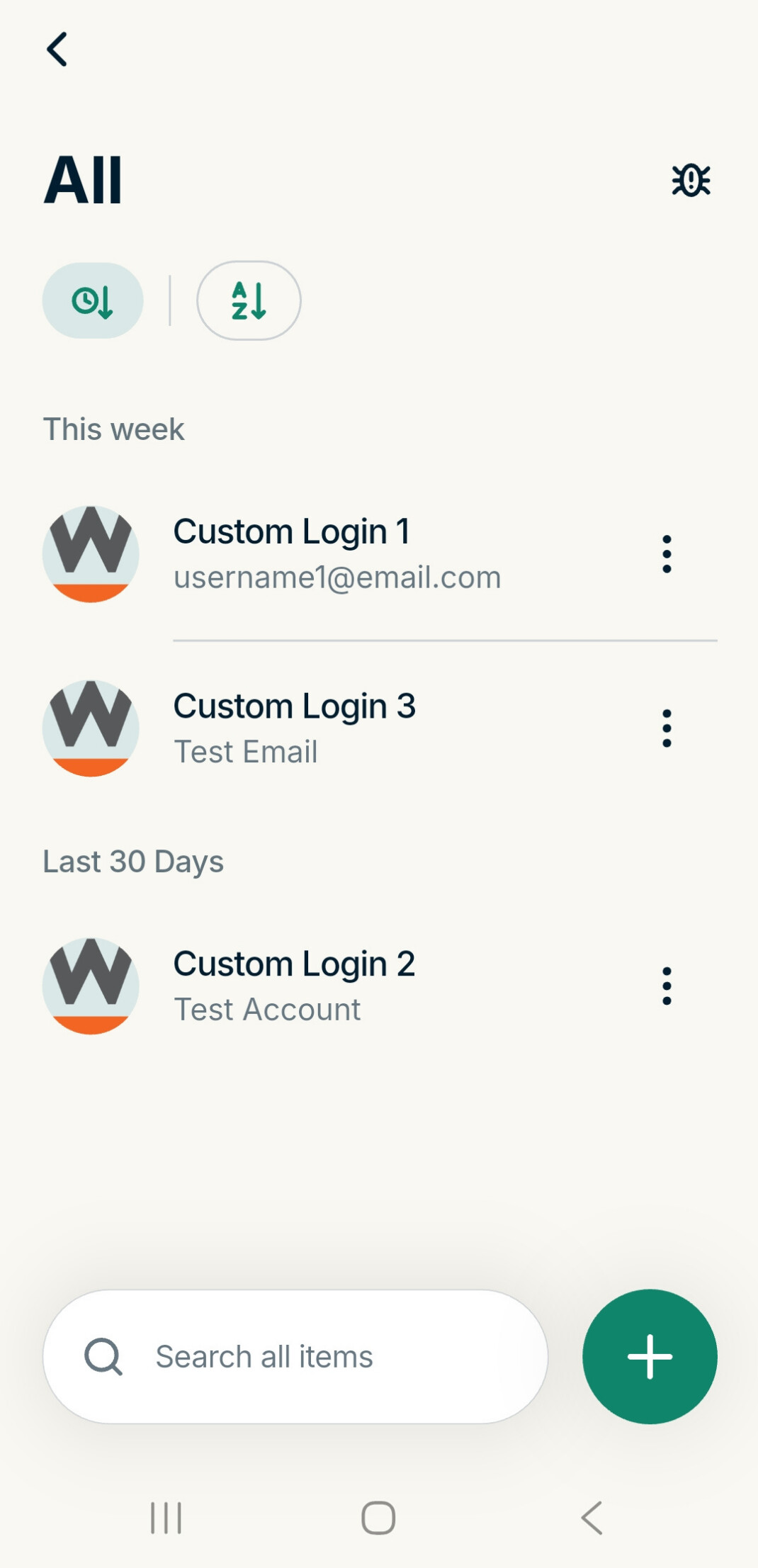
Open ExpressKeys and select the item you want to share.
![ExpressKeys vault showing a list of three saved login items, with sorting options and a search bar.]()
-
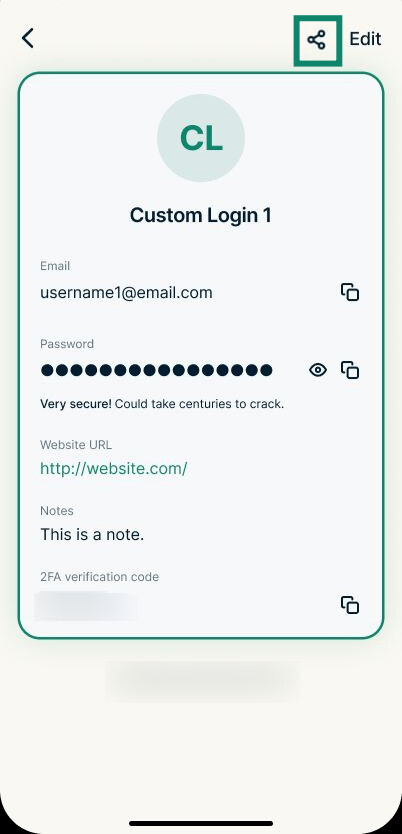
Tap the share icon to open the sharing options.
![ExpressKeys saved login details screen showing account credentials, notes, and a verification code, with the Share icon highlighted.]()
-
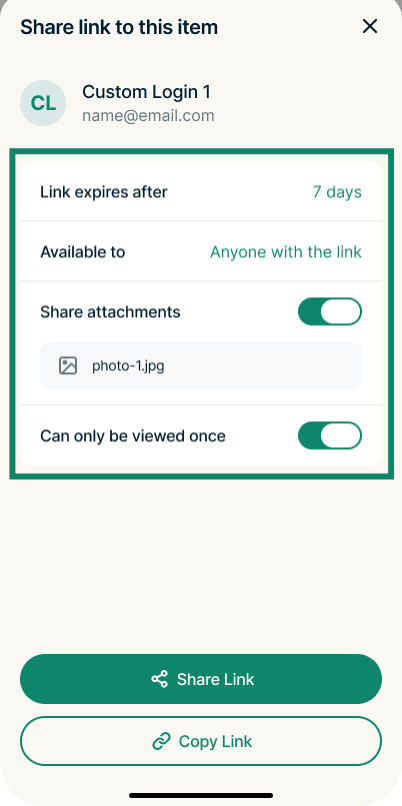
Choose your link settings (the next section explains each option).
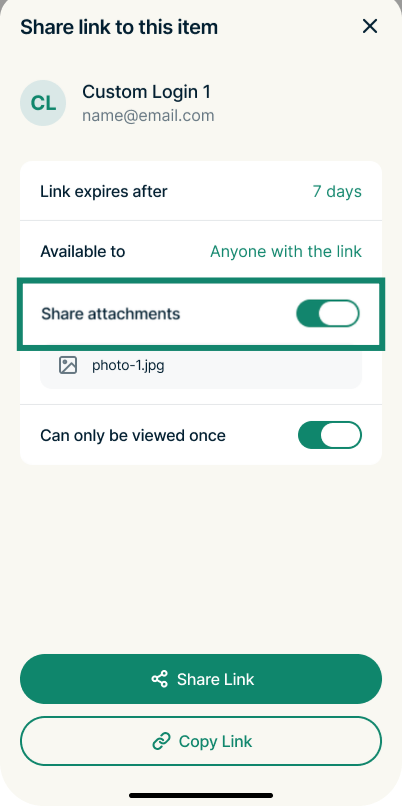
![ExpressKeys item-sharing screen showing link expiration, recipient access, attachment sharing, and one-time viewing settings highlighted.]()
-
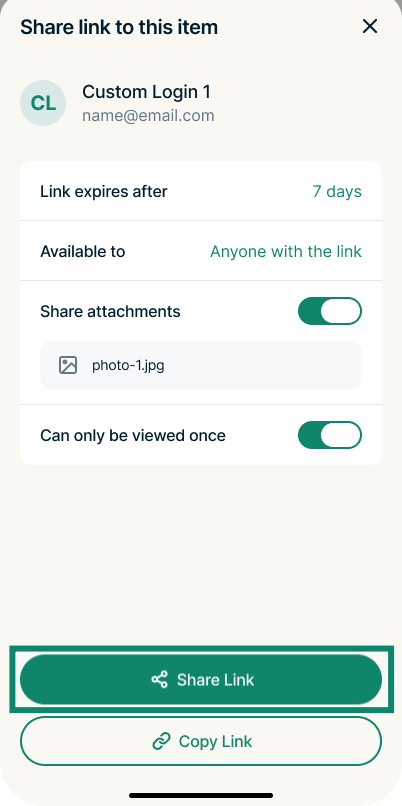
Tap Share Link to send the link through another app on your phone, or tap Copy Link to copy it to your clipboard and share it through your preferred channel.
![ExpressKeys item-sharing screen showing sharing preferences, with the Share Link button highlighted.]()
Adjust link expiry and access settings
Each shared link has its own settings:
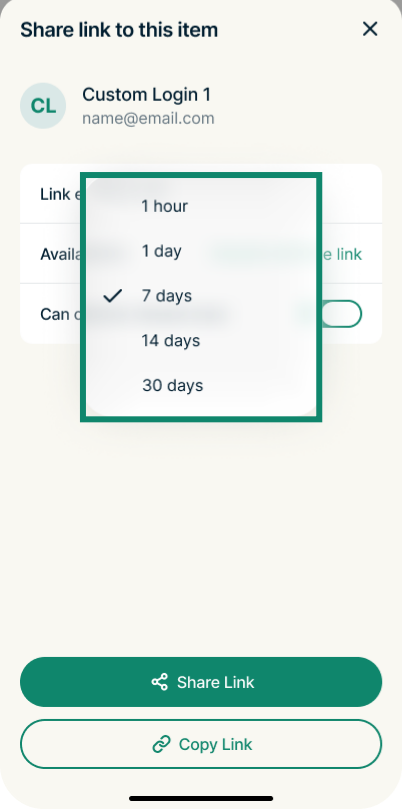
- Link expires after: Choose 1 hour, 1 day, 7 days, 14 days, or 30 days. The link stops working when that time runs out.
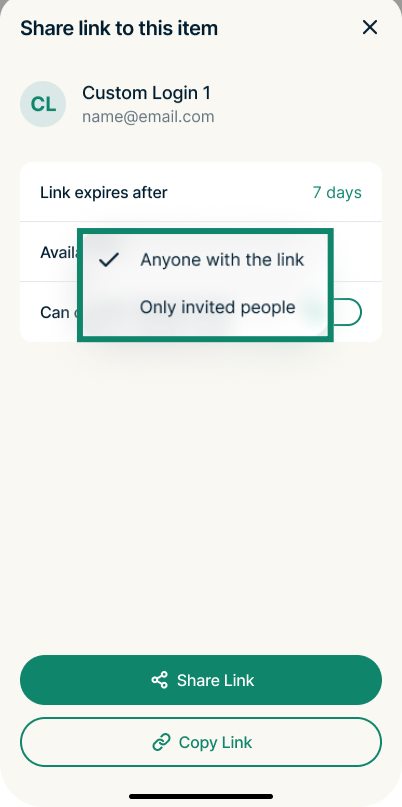
- Available to: Choose Anyone with the link or Only invited people. If you pick invited people, add the email address of each person who should be able to open the link.
- Share attachments: If the item has files attached, you can choose whether to include them and which ones to send.
- Can only be viewed once: This is on by default. The link stops working after it's opened once, even if the expiry time hasn't passed.
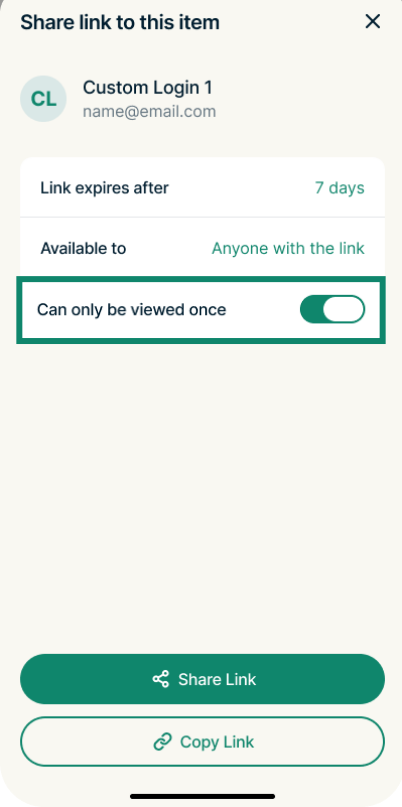
For a one-off share, the strictest setup is Only invited people with Can only be viewed once turned on and the shortest expiry that still gives the person time to open it.
What the person you share with needs to do
The person receiving the link opens it in their browser. They’ll have to enter their email address, select Send code (to request a verification code), enter the code sent to that address, and then select View item.
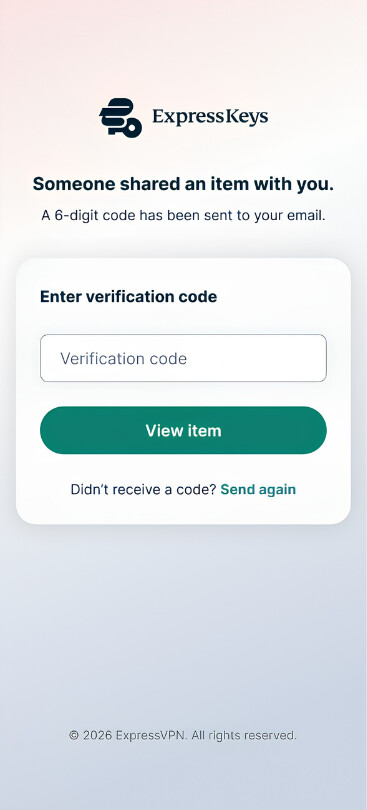
If the link has expired or reached its view limit, the recipient won't be able to access the item, and you’ll need to share it again.
Other ways to share account access securely
Sometimes, the other person needs access to an account more than they need the password itself. Many devices and services handle this on their own, either by sharing access directly or by keeping the password hidden.
- Wi-Fi networks: iPhones, iPads, and Macs can share a Wi-Fi password with a nearby Apple device if you're saved in each other's contacts. Many Android phones can show a QR code that guests scan to connect to Wi-Fi. Either way, nobody types the password or sends it in a message.
- Family groups: With Apple's Family Sharing or a Google family group, you can invite family members to share eligible subscriptions and purchases. Everyone signs in with their own account. Other services may offer family plans or separate profiles that work the same way.
- Delegated access: Some email providers let someone manage your inbox from their own account. In Gmail, for example, this is called mail delegation.
- Disappearing messages: If you have to send a password in a chat, use an end-to-end encrypted messaging app with disappearing messages turned on to reduce how long it stays visible in the conversation. This doesn't offer the same recipient restrictions as a purpose-built sharing link, though, so when possible, use ExpressKeys to control who can access the shared item and how long the link remains available.
When should you share a password, and when should you share account access?
Sharing a password can give someone access to everything the account allows. That's fine for some accounts and a real risk for others, so check what the account controls before you send anything.
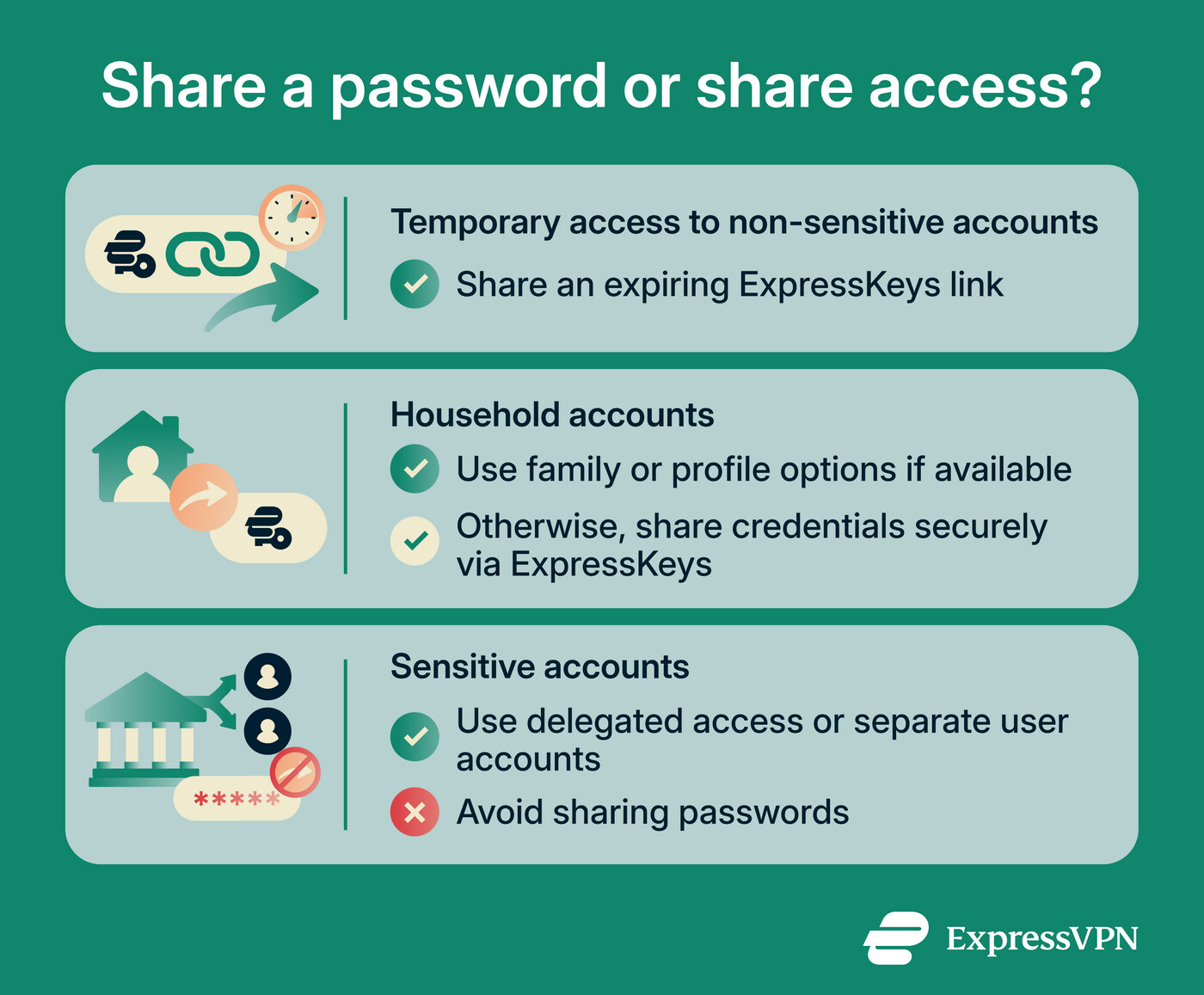
For household and subscription accounts, use the service's family or profile options, such as Apple’s Family Sharing or a Google family group, if they’re available. Each person then signs in with their own details, and you don't have to change your password if someone leaves the household. If the service has no such option, sharing the login via ExpressKeys is a good alternative, as long as that password isn't used anywhere else.
Banking, email, and other sensitive accounts are a different case. They often control other accounts, and your email inbox is usually where password reset links for everything else arrive. Anyone with your email password may be able to reset other passwords or take over linked accounts.
For these accounts, use delegated access if the service offers it. Delegated access is a setting that lets another person use your account, or parts of it, while signing in with their own login, so they never see your password. In Gmail, for example, you can add a delegate who reads and sends email from your inbox while signed into their own Google Account. If it isn't available, have them set up their own account rather than sharing your login.
Sometimes sharing a password is unavoidable, and the recipient only needs access temporarily. In that case, an ExpressKeys link with a short expiry and Can only be viewed once enabled helps limit access through the link.
What to do if a shared password is exposed
A shared password can end up somewhere it shouldn't, or you might stop trusting someone who has it. An expired or already-viewed ExpressKeys link can't be opened again, but anyone who opened it may still have the password. Changing the password stops the old one from working. Here’s what to do:
- Change the affected password: Create a new one with the ExpressKeys password generator or ExpressVPN's password generator, set it in the account’s security settings, then update the saved login in ExpressKeys so autofill uses the new password.
- Change it anywhere else you used it: Reusing an exposed password puts other accounts at risk. ExpressKeys’s Password Health feature flags reused and weak passwords, helping you identify other accounts that need new credentials.
- Review recent activity and sign out of other sessions: Many services show where your account is signed in and let you sign out of every other device. While you're there, check that the recovery email and phone number are still yours.
- Turn on two-factor authentication (2FA) where it's available: 2FA adds another verification step beyond your password, making it harder for someone to access your account with a stolen password alone. ExpressKeys can generate the codes, and Password Health shows which saved accounts don't use 2FA yet.
Why should you trust ExpressKeys with your passwords?
To share a password through ExpressKeys, you first save it in your vault. These safeguards protect what you store there:
- Zero-knowledge encryption: Your logins, cards, notes, and attachments are encrypted and decrypted on your device using your vault password, which only you know. Without it, no one can see what's in your vault, including ExpressVPN.
- 2FA on new devices: ExpressKeys requires an extra verification step when you sign in on a new device. This helps protect your account if someone obtains your account password.
- Independently audited: Cybersecurity firm Cure53 audited the ExpressKeys apps for iOS and Android, along with their underlying architecture, in early 2026. None of the issues discovered were of high or critical severity, and the full Cure53 report lists the findings and their remediation status.
Choose a secure password-sharing tool
ExpressKeys lets you share a login through a link you control while keeping everything else in a zero-knowledge vault that only you can open.
Share passwords with ExpressKeys
Try ExpressKeys with eligible ExpressVPN plans, backed by a 30-day money-back guarantee for first-time users.