How to secure your home Wi-Fi with ExpressVPN Fortify


Securing a home network has two parts. The first is access: a strong admin password, a unique Wi-Fi password, Wi-Fi Protected Access 3 (WPA3) encryption, and up-to-date firmware keep strangers off the network and out of the router’s settings. The second is the traffic itself, which those settings don’t protect once it leaves the router and passes through your internet service provider (ISP).
Fortify (GL-MT6000) is our Wi-Fi 6 router, developed in partnership with GL.iNet, and it lets you handle both parts. Its router settings control access, and once you set it up, its built-in ExpressVPN connection encrypts traffic from the devices you choose between the router and the VPN server.
How ExpressVPN Fortify protects your home network
When an ExpressVPN tunnel is active on Fortify, it routes internet traffic from the devices you choose through an encrypted VPN tunnel to an ExpressVPN server. Your ISP can see that your home connection sends traffic to a VPN server, but not which websites and services those devices connect to or the content of what they send and receive.
Websites and online services also see the VPN server’s IP address instead of the public IP address assigned to your home connection, which makes it harder to tie what you do online back to your household.
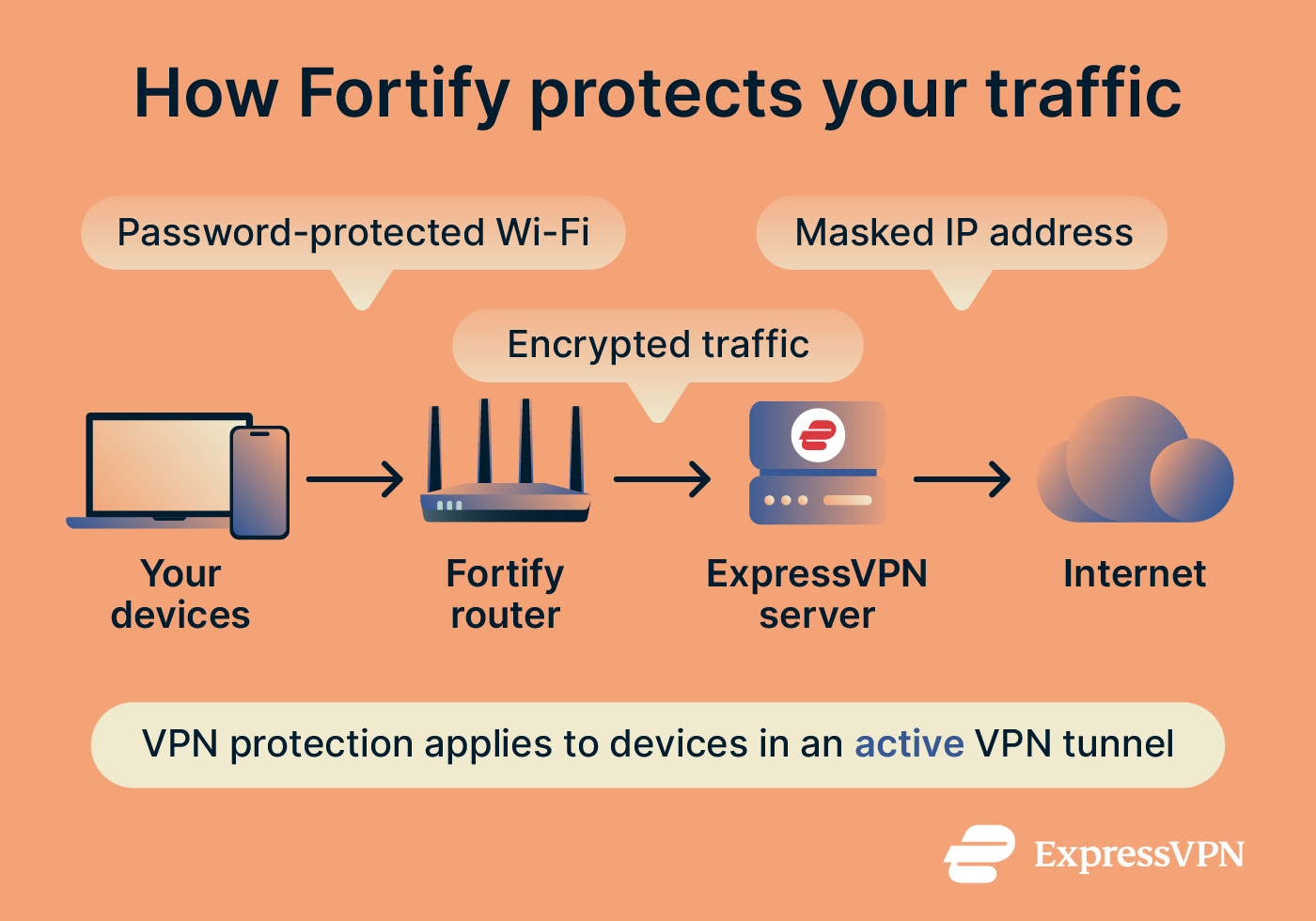
Because ExpressVPN is built into the router, your devices don’t need a separate VPN app for protection while they’re connected to it. Fortify covers up to 86 connected devices at once, including ones that may not support a VPN app, like smart TVs, streaming boxes, game consoles, smart speakers, and security cameras.
Fortify is also a Wi-Fi 6 router. Wi-Fi 6 is a newer generation of Wi-Fi that handles more connected devices at once than earlier versions, which suits homes with many phones, laptops, and smart devices.
How to secure your home Wi-Fi with Fortify
Start with the router’s own security settings, then set up ExpressVPN for the devices you want it to cover.
Secure your router and Wi-Fi network
The VPN doesn’t control who can join your Wi-Fi or sign into the router. Anyone with your admin password can change your settings, see which devices are connected, and turn the VPN off. The steps below protect your network whether the VPN is on or not, and our Fortify setup guide covers first-time setup in more detail.
- When you set up Fortify for the first time, go to 192.168.8.1, open the admin panel, and create an admin password. Choose a strong, unique password that you don’t use for other accounts, different from your Wi-Fi password.
- Change the default Wi-Fi name and password printed on the router’s label, since anyone who sees the router can read them.
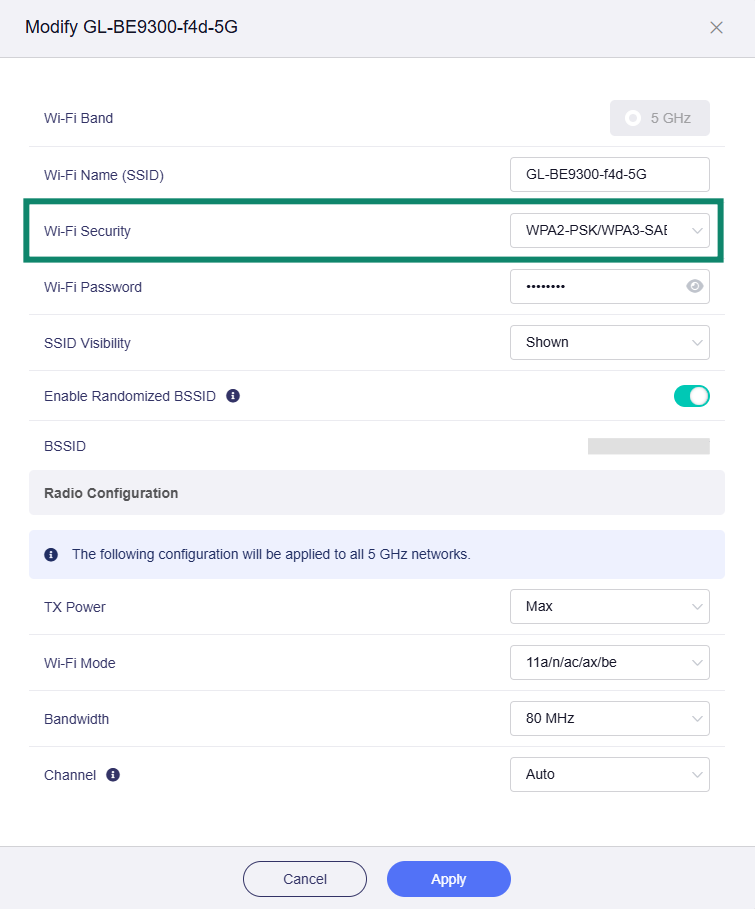
- In the Wireless settings, choose the strongest Wi-Fi Security option your devices support. WPA3 is the newest standard, but some older devices only support WPA2, so you may need to use a WPA2 option for them.
- Check for new firmware periodically under System > Upgrade and install the latest official version. GL.iNet maintains Fortify’s firmware, including its ExpressVPN integration, and addresses security fixes as needed.
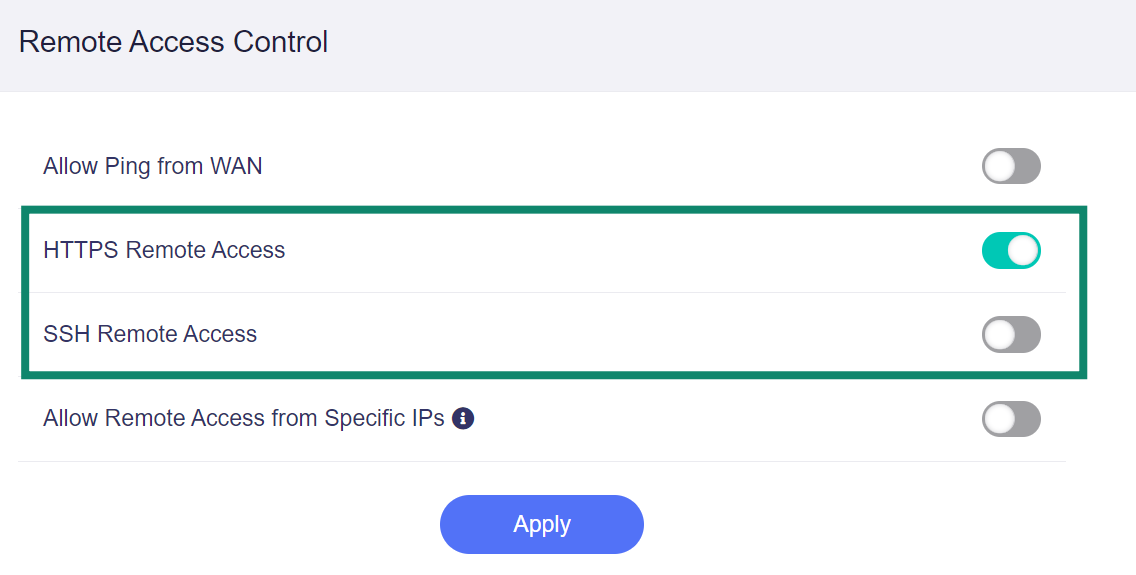
- Under Security > Admin Access, make sure HTTPS Remote Access and SSH Remote Access are off unless you need them. Both let someone manage your router from outside your home network, so keeping them off makes your router’s settings harder to reach.
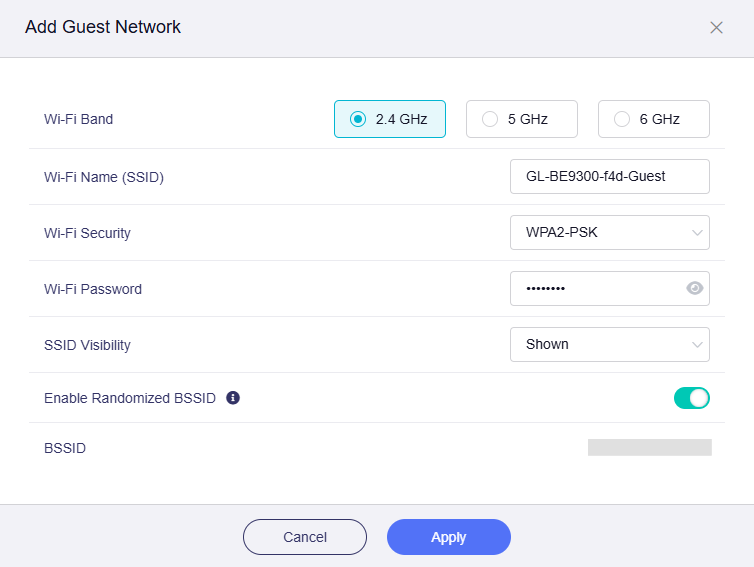
- Under Wireless, add a Guest Network so visitors can get online without your main Wi-Fi password and an IoT Network for smart devices like cameras and speakers. Each one has its own name and password and is kept separate from your main network. If a visitor’s phone or a smart camera is compromised, that makes it harder for it to reach your phone or laptop. Both networks are off by default.
Enable ExpressVPN for your connected devices
Fortify doesn't send any traffic through the VPN until you connect an ExpressVPN subscription, create a VPN tunnel, and switch it on. A tunnel is a set of rules that tells the router which server location to use and which devices should connect through it. Fortify includes 12 months of the ExpressVPN Advanced plan, which you claim from the admin panel.
- Go to 192.168.8.1 to open the admin panel, then select VPN > VPN Client Profile.
- Agree to the terms, click Get Started, then Claim 12-Month Plan, and enter your order details. You’ll add a payment method at checkout for future renewals, but you won’t be charged right away.
- Return to the admin panel, click Login, then Log in to ExpressVPN. Enter the email you used at checkout, type in the 6-digit code sent to it, create a password for your ExpressVPN account, and click Yes to authorize the router.
- Return to the admin panel, click Go to ExpressVPN Dashboard, then Add VPN Tunnel.
- Pick one or more server locations and click Next. If you pick more than one, Fortify tries them in order until one connects.
- Select All Clients to include every device on your network and click Next. Then select All Targets, so all of their internet traffic uses the tunnel, and click Apply.
- Click the power button on your new tunnel. When it shows Connected, the devices it covers are using ExpressVPN.
Our VPN tunnel guide covers each option in more detail, including how to set up separate tunnels for different devices.
Configure the VPN kill switch
A VPN kill switch blocks internet traffic if your VPN disconnects, so your devices don’t fall back to your regular internet connection. Without it, your traffic would travel without VPN encryption and show your home IP address. Fortify has two kill switch settings:
- Kill Switch: Blocks traffic from a specific VPN tunnel if that tunnel disconnects. To enable it, click the tunnel’s gear icon, select Options, and turn on Kill Switch. Traffic stays blocked until the VPN reconnects. If this setting is off, the tunnel’s traffic follows the All Other Traffic Policy instead, which by default sends it over your regular internet connection.
- Enhanced Kill Switch: Blocks all traffic that isn’t going through an active VPN tunnel, including traffic from devices excluded from your tunnels. If no tunnel is active, your devices can’t get online. To enable it, click the gear icon above your tunnels to open All Other Traffic Policy, then select Enhanced Kill Switch instead of the default Allow Non-VPN Traffic.
Block ads and trackers on your Fortify network
Fortify can block ads and trackers for the devices connected to it through AdGuard Home, a third-party tool that comes with its GL.iNet router software. This is most useful for smart TVs and other devices that can’t run a blocker of their own. AdGuard Home is off until you enable it under Applications > AdGuard Home. GL.iNet’s AdGuard Home guide covers the setup.
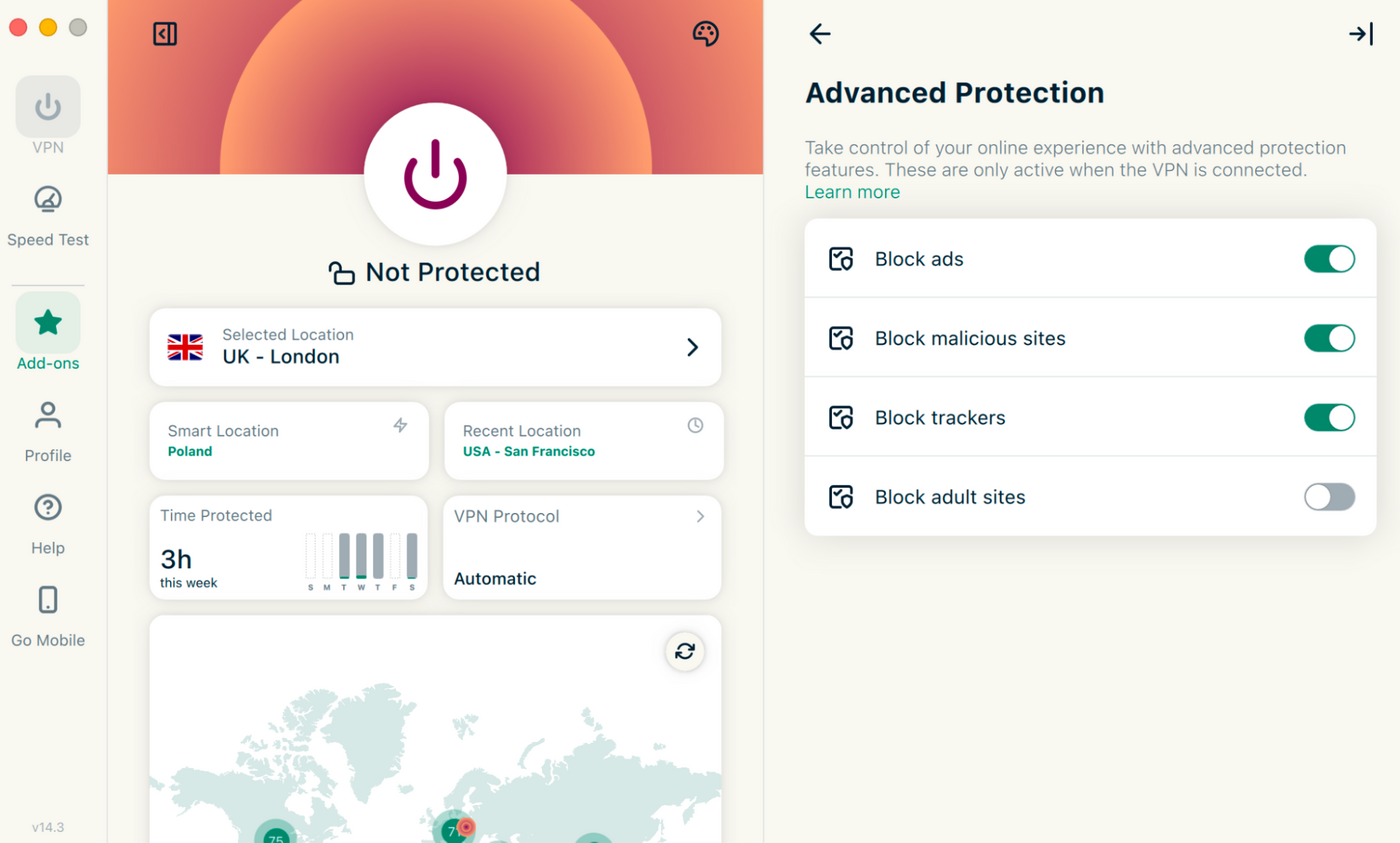
ExpressVPN’s own ad and tracker blockers and other protections aren’t available on Fortify. They work in the ExpressVPN apps for phones, laptops, and tablets, and only while the app is connected to the VPN. To turn them on, go to Add-ons > Advanced Protection in the desktop or mobile app.
Configure VPN connections for different household devices
Not every device in your home needs the same VPN setup. A work laptop that runs your employer’s VPN may need to stay outside the router’s VPN, and you might want a game console to use a different server location from the rest of your devices. Fortify lets you create separate VPN tunnels, each with its own server location and device rules.
When you add a tunnel, choose which devices use it:
- All Clients: Every device connected to Fortify.
- Specified Connection Types: Only devices on certain networks, such as your Guest Network or IoT Network.
- Specified Devices: Only the devices you select.
- Exclude Specified Devices: Every device except the ones you select.
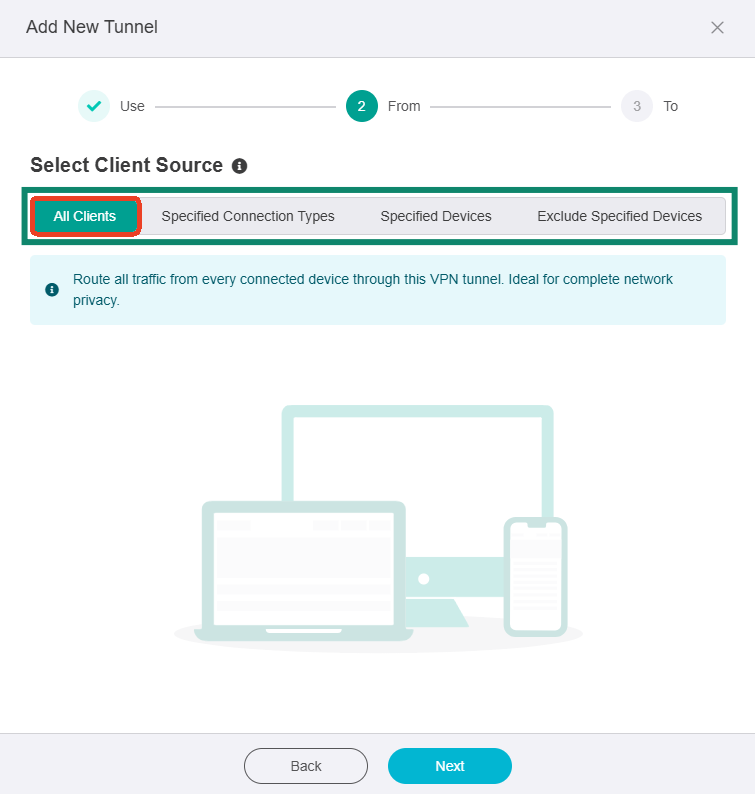
For example, a tunnel set to Specified Devices could cover only your smart TV and smart speakers, while every other device, including a work laptop, stays outside it. Only devices that have already connected to Fortify appear in the device list. If you’ve switched on Enhanced Kill Switch, devices outside your tunnels can’t get online, so keep Allow Non-VPN Traffic selected if a device needs your regular connection.
You can also route only certain websites through a tunnel and set a priority order for tunnels whose rules overlap.
What Fortify doesn't protect against
Fortify adds privacy for the traffic that goes through its VPN tunnels, but it isn’t a complete security system. These are the limits to plan around:
- It doesn’t stop threats inside your home network: If a device on your Wi-Fi is compromised, the VPN doesn’t stop it from reaching other devices on the same network. Keeping smart devices on the guest and IoT networks limits this.
- It doesn’t stop phishing, malware, or tracking by the services you use: A VPN can’t stop a user from entering details on a fake login page or downloading a malicious file, and a service can still track what a signed-in user does. ExpressVPN’s malicious site blocker, which blocks known malicious websites, is part of advanced protection in the apps, not the router.
- It only covers devices while they’re connected to it: Once a phone or laptop leaves your Wi-Fi, Fortify no longer protects it.
- Dedicated IP only works in the apps: If your plan includes a dedicated IP (available with Express Pro or as an add-on), you connect to it through the ExpressVPN app on each device, not through Fortify.
For phones, laptops, and tablets that leave home, it’s worth installing the ExpressVPN app as well. The app gives each device its own VPN connection on other networks, plus the app features that come with your plan. On the Advanced plan, which covers up to 12 devices, the router counts as one device no matter how many connect to it.
How to check that your home network is protected
Once Fortify is set up, a few quick checks can confirm that your VPN tunnels and device rules are working as intended.
- Check that your VPN tunnel is connected
In the admin panel, go to VPN > VPN Client Profile and click Go to ExpressVPN Dashboard. Each tunnel you want active should show Connected under its power button. - Check your public IP address
On a device that should be using ExpressVPN, open an IP checker. The IP address and country should match the server location you chose for that tunnel. - Check a device outside the tunnel
Run the same IP check on a device you’ve left out. It should show your regular IP address and location, unless Enhanced Kill Switch is on, in which case it has no internet access. - Check your kill switch settings
Make sure Kill Switch is on in the Options of each tunnel you want protected, and that All Other Traffic Policy is set to Allow Non-VPN Traffic or Enhanced Kill Switch, depending on what you chose.
Ready to secure your home Wi-Fi?
Fortify gives you the router settings to control who joins your network, plus built-in ExpressVPN to encrypt traffic from the devices you choose, including smart TVs and game consoles.
Secure your Wi-Fi with Fortify
Includes 12 months of the ExpressVPN Advanced plan for new and returning users.